TuxTalk

Hold F8 and talk.Your words show up wherever you're typing.

TuxTalk is free voice dictation for Linux. It runs on your own computer, offline, so nothing you say ever leaves it.

  • Free, MIT license
  • No account, no cloud
  • Wayland and X11
  • AppImage, .deb, .rpm and AUR

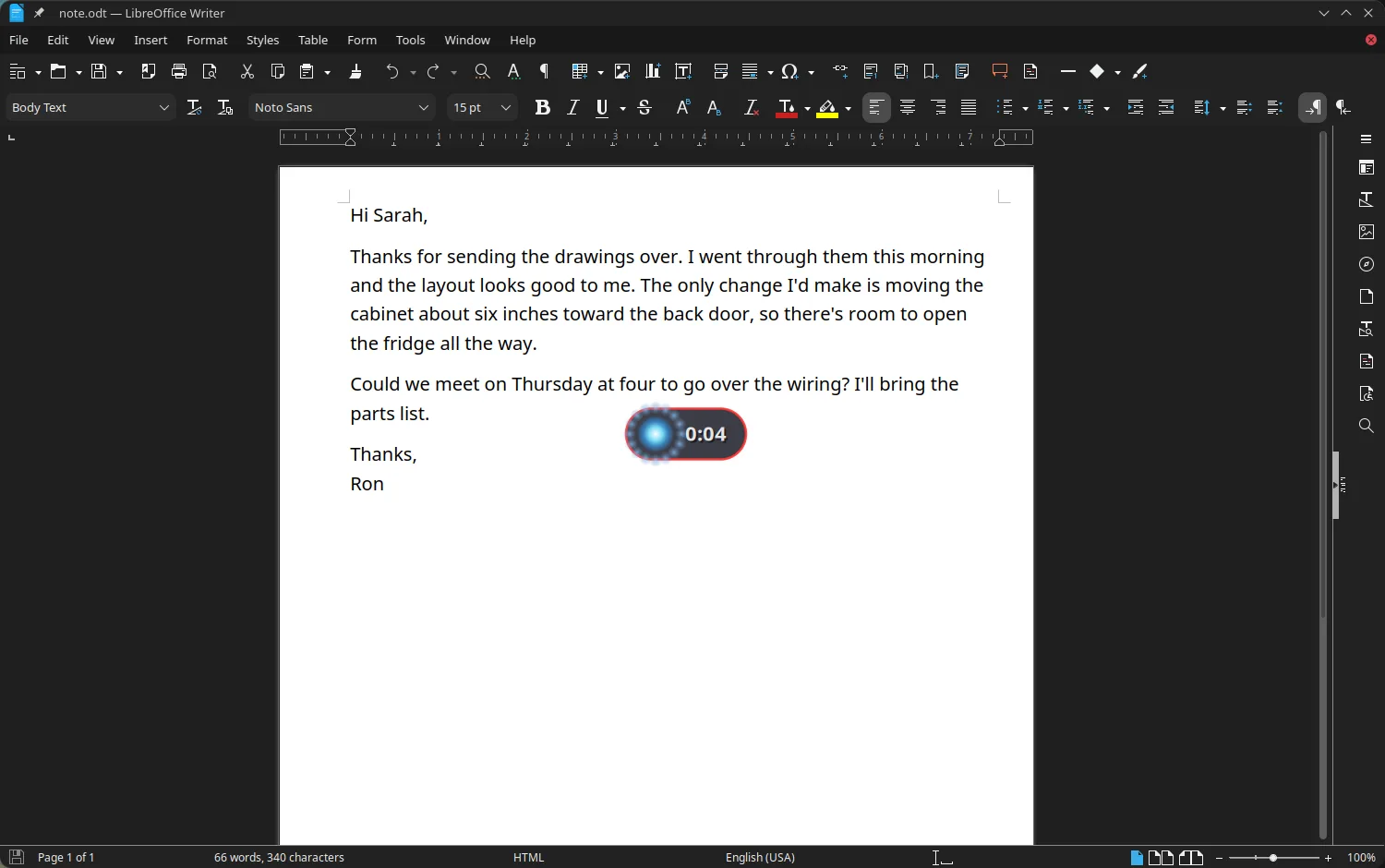
Hi Sarah,

Thanks for sending the drawings over. I went through them this morning and the layout looks good to me.

Press and hold it, or hold F8 on your keyboard.

What happens when you hold the key

  1. 1

    Hold F8

    Or whatever key you picked. A little indicator pops up so you know it's listening, and if music or a video is playing it pauses.

  2. 2

    Talk

    Just talk normally, at your own pace. Stopping to think is fine, it keeps listening as long as you hold the key.

  3. 3

    Let go

    The speech model turns what you said into text right there on your computer. Then TuxTalk tidies it up, so "question mark" turns into an actual question mark.

  4. 4

    It types it for you

    Your words get typed wherever your cursor is, a browser or a terminal or whatever has the focus. On a graphics card a sentence takes about a fifth of a second.
It all runs off a few keys

F8 and F9 are both on all the time, so you just use whichever one fits what you're doing. Don't like those keys? Change them to anything you want.

  • F8

    Hold to talk

    Hold it while you talk. When you let go, TuxTalk types what you said wherever your cursor is.

  • F9

    Tap to start, tap to stop

    For the longer stuff. Double-tap it and it goes hands-free, then stops by itself when you go quiet. If you don't say anything for 10 seconds it stops and types nothing.

  • Ctrl+Alt+P

    Type it again

    Something grabbed the focus and your words went into the wrong window? Click where they belong and press this.

  • Shift+F8

    Voice editing Labs

    Select some text, hold it and say what to change, like "make this more formal". It's off until you turn it on.

Say it the way you'd say it out loud

Punctuation goes in on its own. Say "comma" or "new paragraph" when you want one in a certain spot, and email addresses come out written the way they should be.

You sayturns intoTuxTalk types

"send the plans to john at gmail dot com"

Send the plans to john@gmail.com.

"new paragraph could we meet on Thursday question mark"

Could we meet on Thursday?on a new paragraph

"I have three cats and twenty five chickens"

I have 3 cats and 25 chickens.with Write numbers as digits turned on

"git status", in a terminal

git statusno capital and no period, since it's a terminal

"let's say three o'clock, no wait, make that four o'clock"

Let's say four o'clock.with the AI corrections, which are optional and off until you turn them on

The AI that catches "no wait" and "scratch that" is a small model that runs on your computer. If it changes anything besides the correction, your words get typed exactly the way you said them. There are voice commands for fixing things too, like "undo last word" or "delete last three sentences".

It picks a setup for your computer

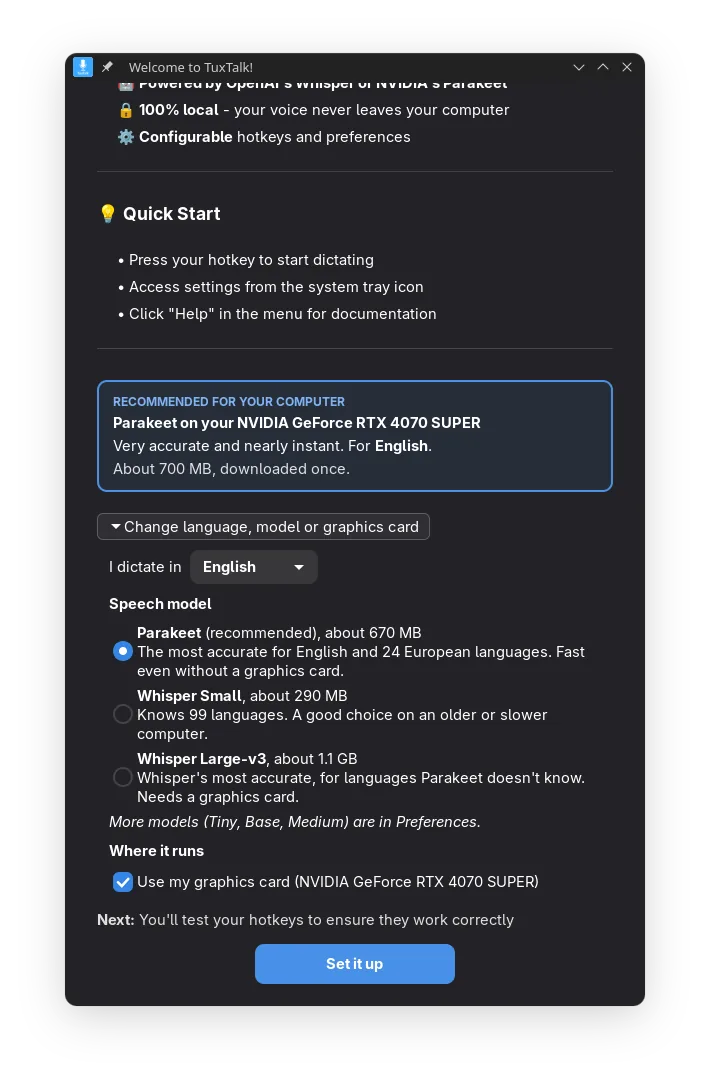
The first time you start it, TuxTalk looks at your graphics card and the language you speak and picks a setup for you. One button shows every other choice, with how big each download is.

The default speech model is NVIDIA's Parakeet. It's fast even on an ordinary processor and handles English plus 24 European languages. For anything else there's OpenAI's Whisper, which knows 99 languages, from Tiny all the way up to Large-v3.

Got a graphics card? NVIDIA, AMD or Intel, TuxTalk can use it. That's a 24 MB engine plus a 669 MB copy of Parakeet made for the graphics card. It times your card against your processor first and only switches if the card is really faster. On an NVIDIA graphics card there's also a bigger 1.4 GB option, but that one only runs the Whisper models.

A minute of speech with Parakeet, same accuracy both ways. Timed on my RTX 4070 Super.

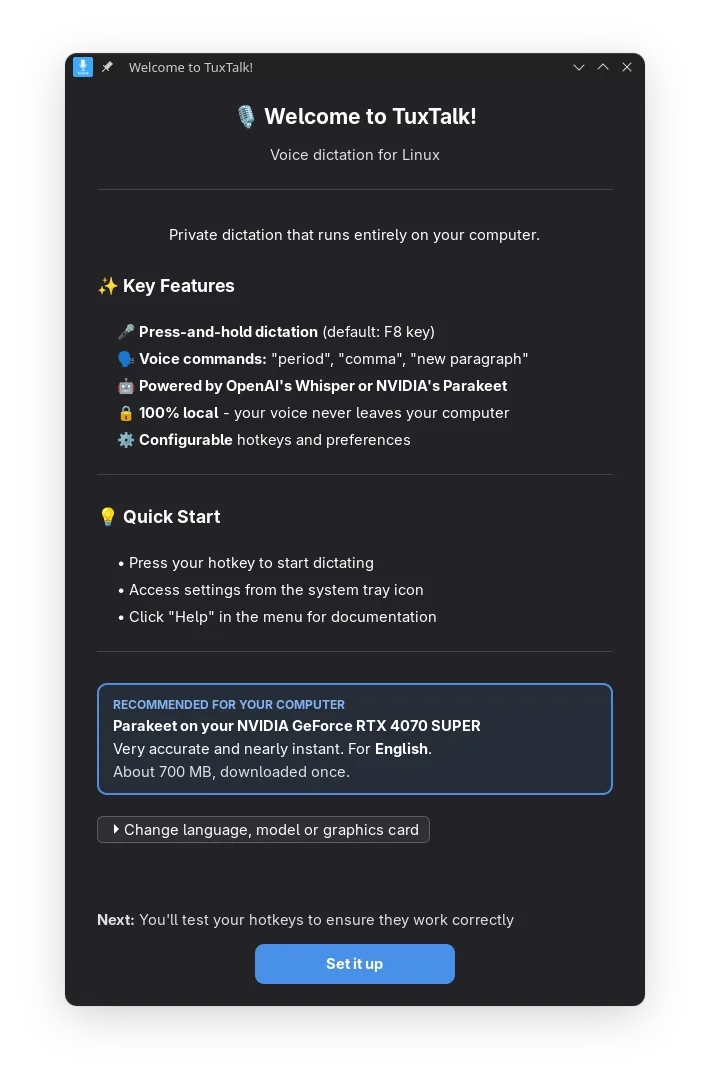
The first-run screen: a recommended setup naming the graphics card and the language, with a Download and Set Up button.
The first-run screen recommends a setup. Use Recommended in Preferences gets you back to it later.

Teach it the words you use

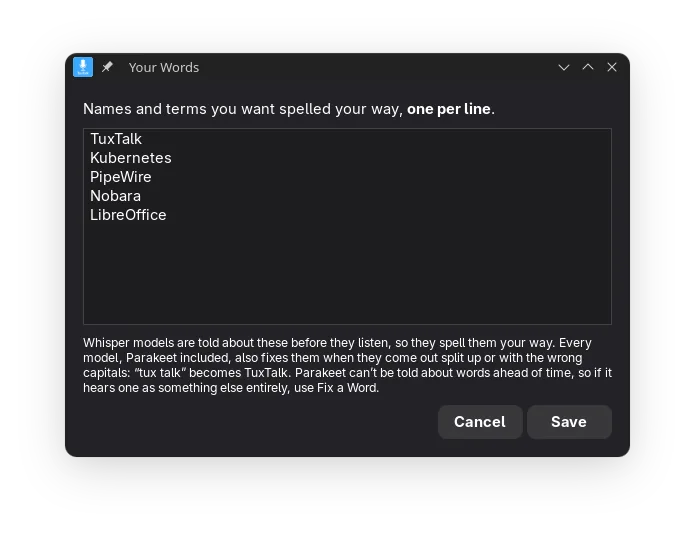
Names and part numbers, the stuff a speech model has never heard of. Put them in Your Words and they come out spelled your way. Parakeet kept writing my app's name as "Tuck's talk". Now it's TuxTalk.

If a word still comes out wrong, say "fix that word" right after. A window opens on what you just said, you click the word and type it the right way, and from then on it's fixed. It fixes it in your text too.

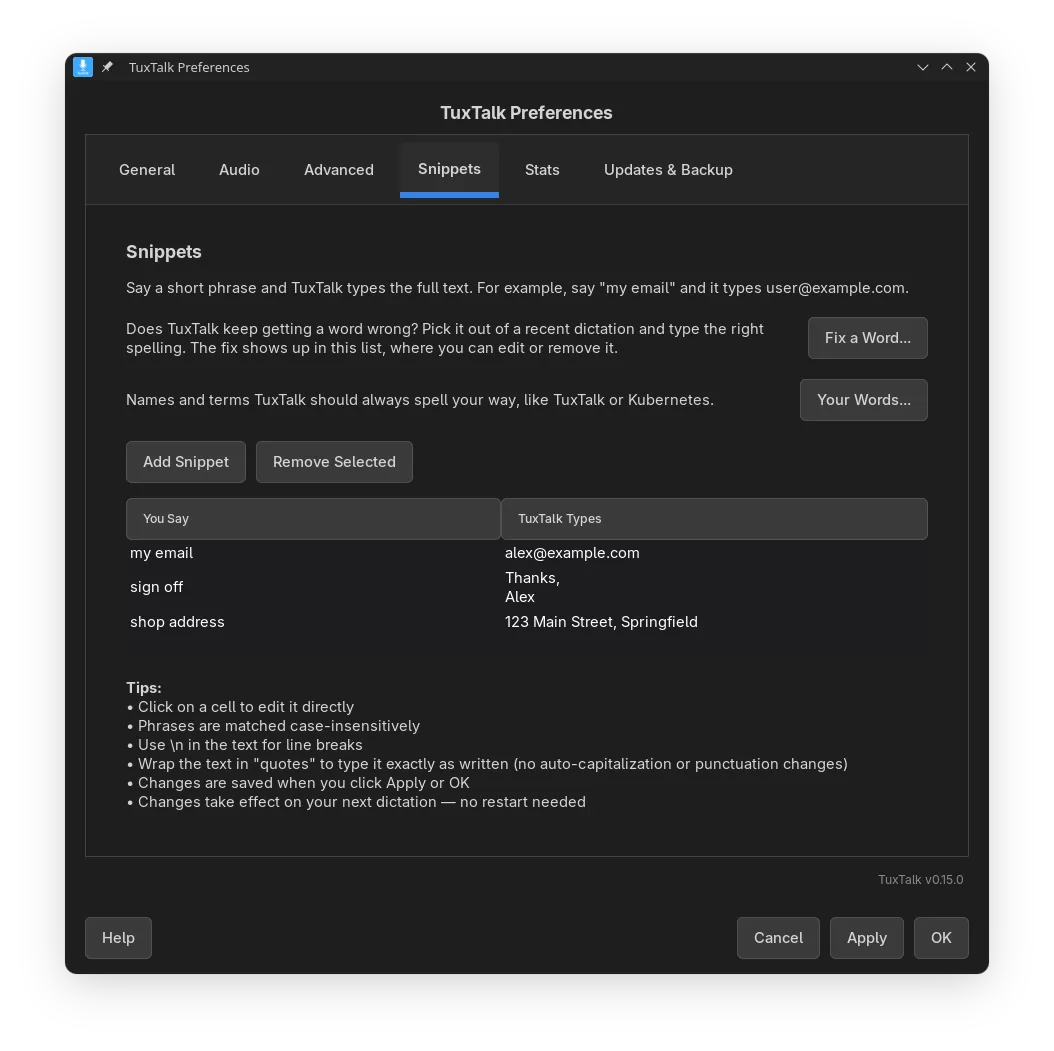
Snippets are your own shortcuts. Say "my email" and get your whole address typed out.

The Your Words window: a list of names and terms, one per line, that TuxTalk should spell your way.

Transcribe a File New in 0.15.1

Got a recording or a video? Hand it to TuxTalk from the tray menu and you get the text back. MP3, M4A, WAV, MP4, MKV and a bunch more all work.

It uses the same model you dictate with, so there's nothing new to download, and you can keep dictating while it works. On my NVIDIA card with Parakeet, three and a half minutes of talking took about nine seconds.

You can copy the text or save it as subtitles for the video. The subtitle timing can be a second or two off, which is fine for most things but I wouldn't use it for a film. It also keeps your last 10, so closing the window doesn't lose anything.

TuxTalk Labs

Labs is where new stuff goes while I'm still working on it. It works, it's just not finished, so it stays off until you turn it on. You'll find it at the bottom of Preferences, Advanced, with a link right there to tell me how it's going.

Voice editing

Select some text, hold Shift+F8 and say what you want changed. There's no fixed wording, and Ctrl+Z puts it back if you don't like it. Jobs like all caps or taking out commas are done exactly in code. Rewording goes to a small AI model that runs on your computer, and that one's a download you only get if you turn it on.

Select and move by voice

Say "select the last sentence" or "go to the end" on its own and TuxTalk does it instead of typing it. Put that together with voice editing and you can select your last sentence and say "make it more formal" without reaching for the mouse.

An indicator that follows your window

The recording indicator can sit near the bottom of whatever window you're talking into, instead of one spot on the screen.

You selectand sayIt changes to

hey can u send me the report by friday thx

make this more formal

Could you please send me the report by Friday, thank you.the AI reworded it

milk
eggs
bread

make this a bulleted list

- milk
- eggs
- breaddone exactly, no AI

the deadline is tomorrow

make this all caps

THE DEADLINE IS TOMORROWdone exactly, no AI

And a bunch of smaller stuff

Pauses your music

Music and videos pause while you dictate and pick back up when you're done. I had a YouTube video going once and it turned "isn't it" into "Venezuela".

Recent Dictations

Your last 20 are in the tray menu, one click to copy. They're only kept in memory and they're gone when you log out.

Your Stats

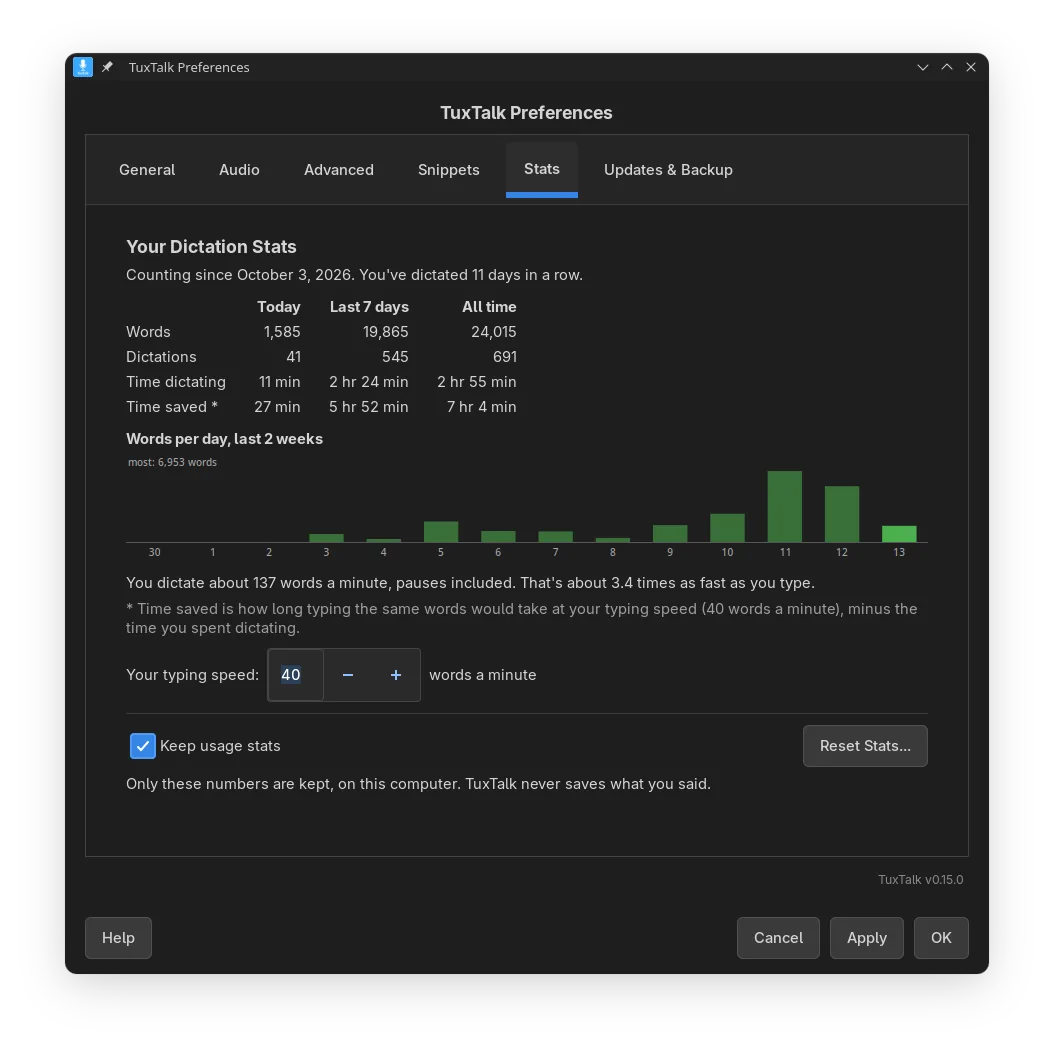
How many words you've dictated and about how much typing that saved you. Only the numbers get kept, never what you said.

Settings backup

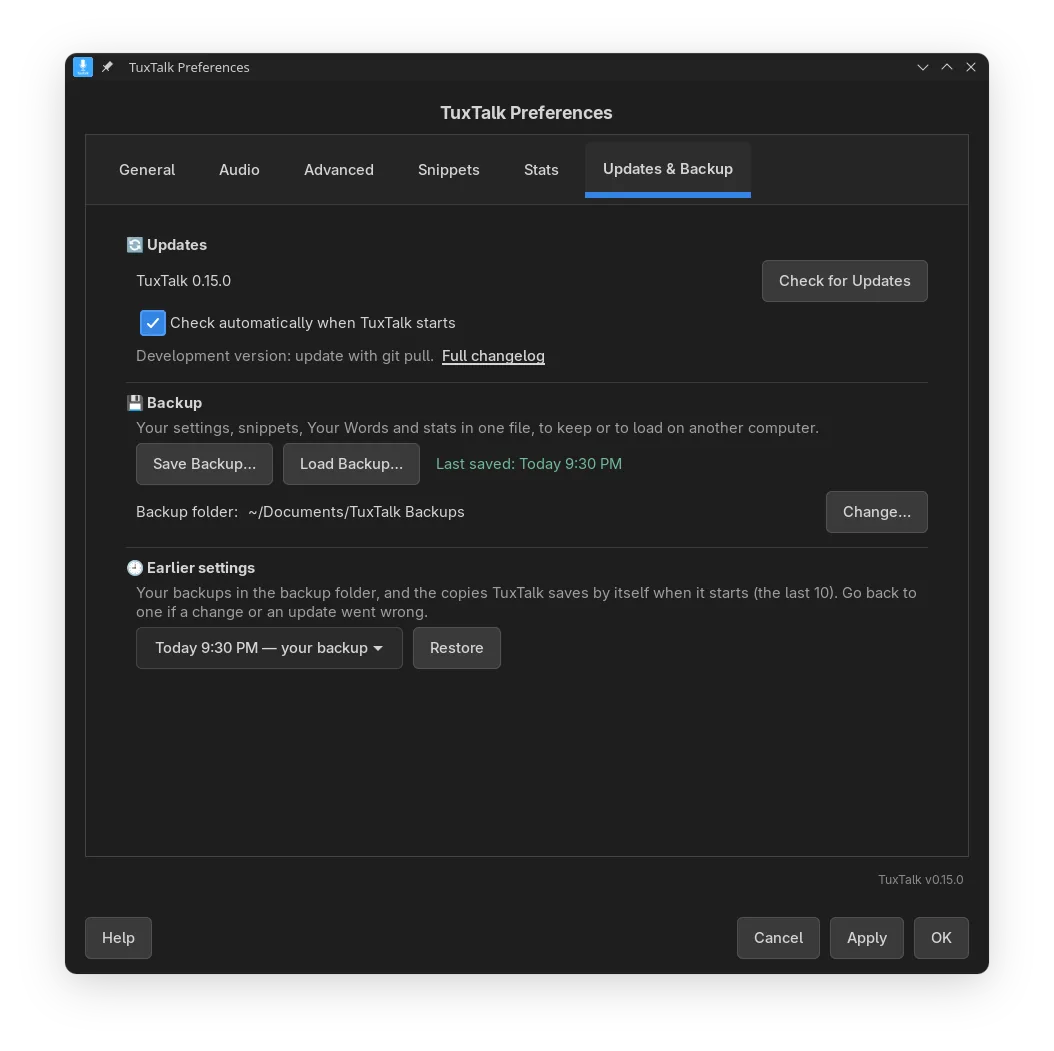
Save all your settings and words to one file and load it on another computer. It keeps your last 10 settings on its own too, in case a change goes wrong.

An indicator you can style

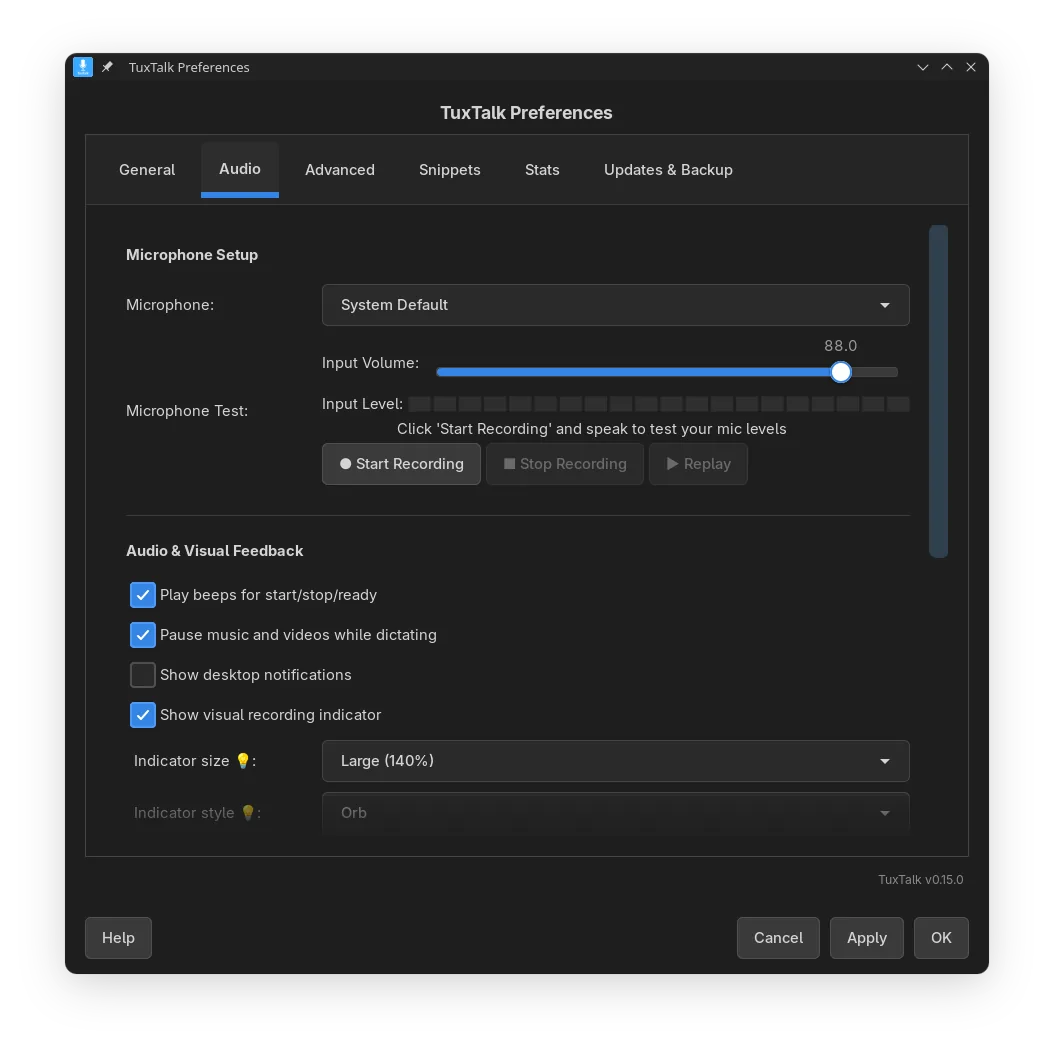
Orb, waveform, frequency bars or radial, any color, anywhere on the screen. It moves with your voice so you know it's hearing you.

Only the languages you speak

Whisper picks from 99 languages and on a short dictation it sometimes guesses wrong. Tick the ones you actually speak and it sticks to those.

It tells you why

If a dictation can't be typed into a window, TuxTalk says why and what fixes it instead of just doing nothing.

A command for your own shortcut

tuxtalk --toggle, plus --start and --stop, if you'd rather use your desktop's shortcuts or a script.

A look around

Swipe or scroll sideways for more, and click one to see it full size.

Dictating a letter in LibreOffice Writer with the recording indicator showing 0:04.
Dictating a letter, with the indicator showing it's listening
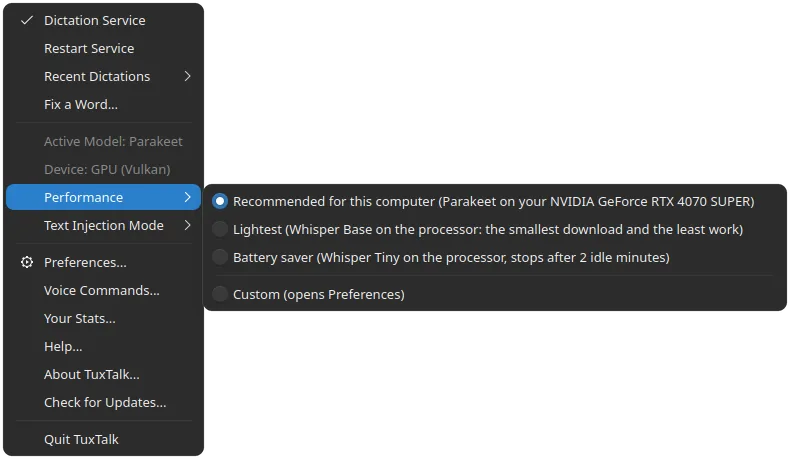
The tray menu with Performance open: Recommended, Lightest and Battery saver.
The tray menu, with Recommended, Lightest and Battery saver
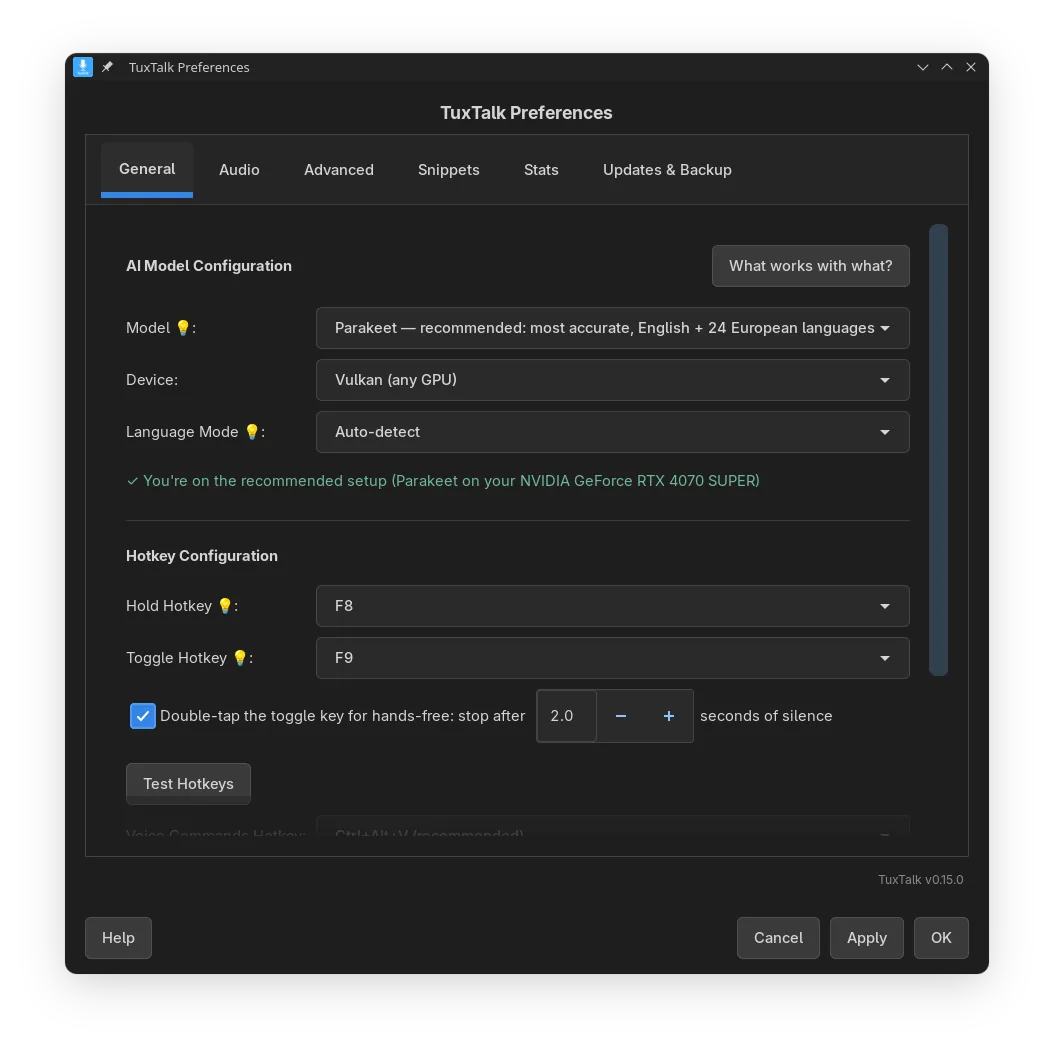
Preferences, General tab: model, device, language and hotkeys.
Preferences: model, graphics card and hotkeys
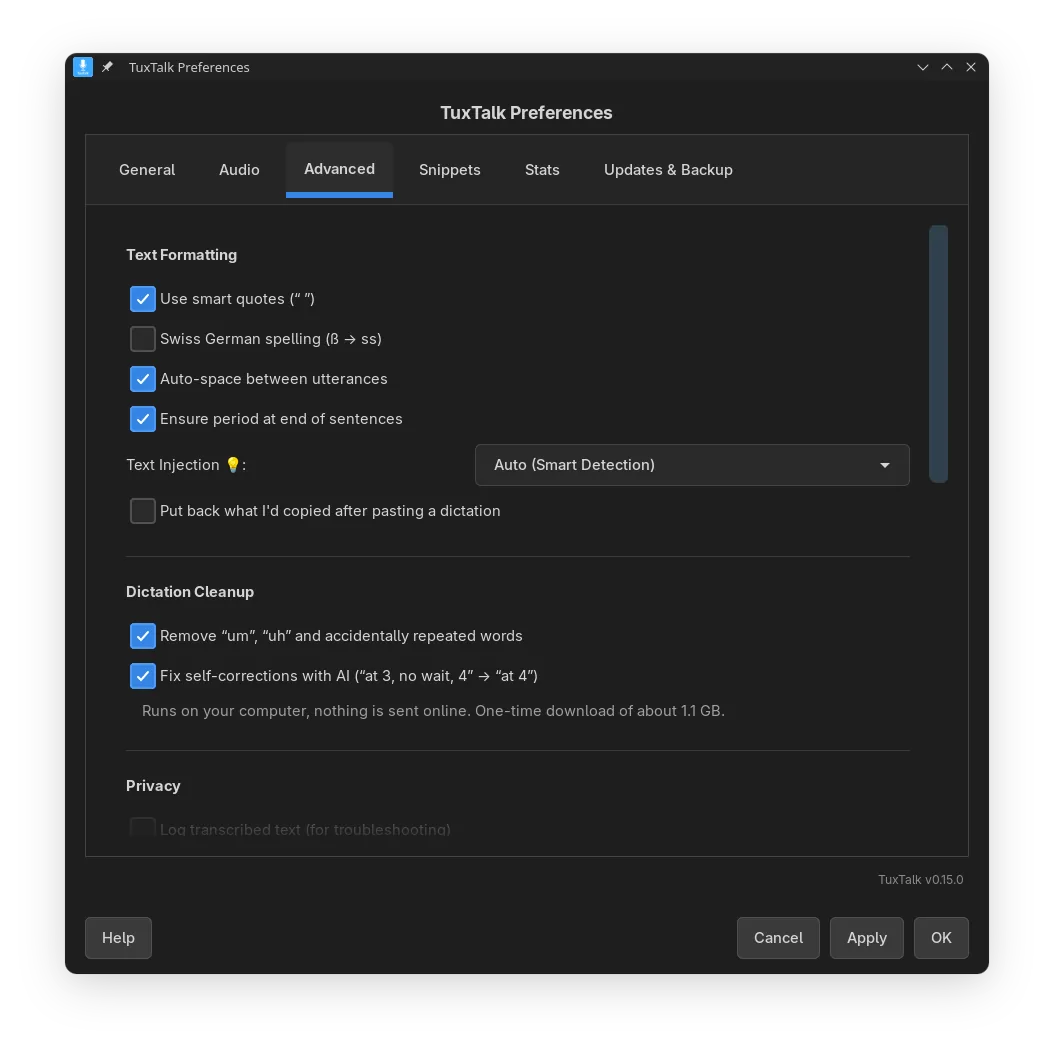
Preferences, Advanced tab: dictation cleanup and text formatting options.
Dictation cleanup and text formatting
Preferences, Snippets tab: your own phrases, Fix a Word and Your Words.
Snippets, Fix a Word and Your Words
Preferences, Stats tab: words dictated today, this week and all time, and typing time saved.
Your Stats
Preferences, Audio tab: microphone test and recording indicator style.
Microphone test and indicator style
Preferences, Updates and Backup tab: save or load a backup and go back to earlier settings.
Updates and backup
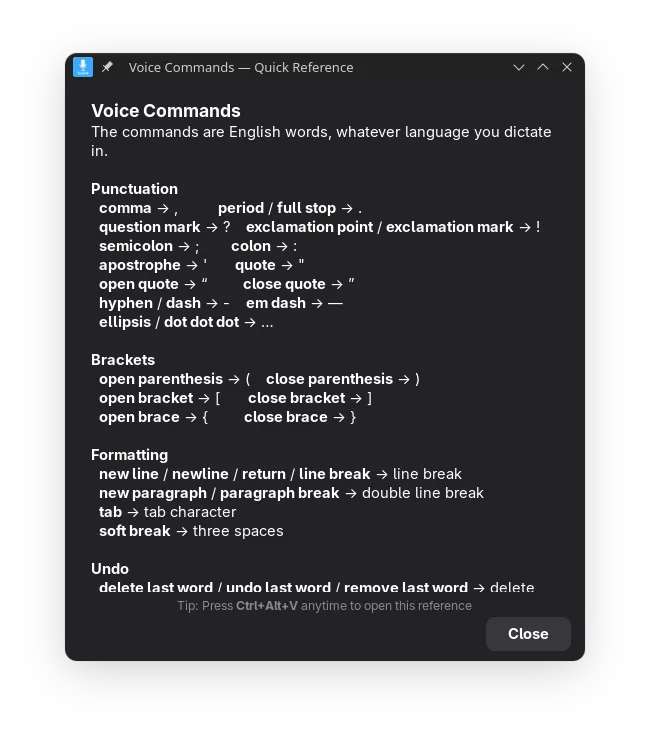
The Voice Commands quick reference window.
The voice commands, all in one place
First run, other options: language, model and graphics card choices with their download sizes.
Every other choice, with its download size

Watch it work

Just under a minute, with sound. It dictates a letter in LibreOffice Writer, then shows the tray menu and the first-run setup. The "no wait" fix in there is the AI corrections, which are off until you turn them on and run on your computer.
No sound handy? This 30-second version has captions instead.

I'll put more videos here as I make them.

Nothing you say ever leaves your computer.

TuxTalk turns your speech into text right there on your computer. There's no account and no cloud, and once the speech model is downloaded it works with the internet unplugged.

The privacy page has the details, including the few times TuxTalk does go online and why.

  • What you dictate doesn't go in the log file. There's a setting to log it for troubleshooting, and it's off.

  • The AI corrections are optional and off until you turn them on. If you do, the AI runs on your computer too.

  • Your Stats keeps numbers only. Recent Dictations are held in memory and gone when you log out.

Get TuxTalk

Pick whichever one matches your Linux. It's the same app in all of them, for 64-bit PCs (x86_64).

AppImage

Any distro. Download it and run it.

chmod +x TuxTalk-v*.AppImage && ./TuxTalk-v*.AppImage
Download

.deb

Debian, Ubuntu, Linux Mint

sudo apt install ./tuxtalk_*_amd64.deb
Download

.rpm

Fedora, RHEL, openSUSE

sudo dnf install ./tuxtalk-*.x86_64.rpm
Download

AUR

Arch and the distros built on it

yay -S tuxtalk-appimage
AUR page

The Download buttons take you to the newest release on GitHub. Grab the file that ends in .AppImage, .deb or .rpm.

Heads up: the first time it runs, TuxTalk asks for your admin password once so it can read your keyboard and type into other apps. Restart your computer after that, or the hotkeys won't work yet.

The AppImage needs fusermount, which almost every desktop already has. If it won't start, install the fuse3 package. No Flatpak yet. If you'd like one, vote in the poll.

Works on your desktop

TuxTalk reads the key straight from your keyboard instead of asking the desktop for it, so hold-to-talk works on Wayland and X11 with no setup. On GNOME you get a proper panel menu, and everywhere else a tray icon.

  • GNOME
  • KDE Plasma
  • Sway
  • Hyprland
  • Cinnamon
  • Other X11 desktops